Licence and Pro
Making samples in EP-PatchStudio is always free: the Sample Editor and multisamples for the EP-40. Pro adds the tools that manage your device and your library, and you can try it free for 14 days.
| Free | Pro |
|---|---|
| Sample Editor | Everything in Free |
| Multisamples for the EP-40 | File Manager and Upload to Device |
| Device Info | Backup and Restore |
| Batch Processor | |
| Project Viewer, Project Library and Sets | |
| Sample Packs, Stem Splitter and Insights | |
| Auto-Sampler (desktop) |
The Free Trial
Section titled “The Free Trial”Every Pro tool is unlocked for 14 days from the first time you open the app. There’s no card to enter. Settings > Licence shows how many days are left.
When the trial ends, the Licence screen offers more days under Trial Ended? Get More Days. If someone has given you a trial extension code, enter it under Have a Code?. A code adds days to your trial. It isn’t a licence key.
Buying Pro
Section titled “Buying Pro”There are two ways to buy, and they work differently.
- On the website. Pro is pay what you want, from $29, paid once. There’s no subscription. Your licence key arrives by email (check your spam folder if you can’t see it). One key works on up to 5 devices, on any mix of Mac, Windows, Linux, iPhone, iPad and Android.
- In the App Store or Google Play. The purchase unlocks Pro on that device and restores on your other devices with the same Apple ID or Google account. It doesn’t come with a licence key. If you want Pro on your computer too, email me at support@squarewave.studio and I’ll send you a desktop licence.
Store purchases are refunded by the store. For website purchases, see the refund policy.
Enter Your Licence Key on a Computer
Section titled “Enter Your Licence Key on a Computer”- Open Settings > Licence.
- Select Enter Licence Key and paste the key from your email.
- Select Activate.
Enter Your Licence Key on iPhone, iPad or Android
Section titled “Enter Your Licence Key on iPhone, iPad or Android”If you bought on the website, you don’t need to buy again in the store. Your key works here too.
-
Copy the licence key from your email.
-
Open EP-PatchStudio and tap Settings. On a phone, it’s the gear at the top right of the screen. On an iPad at full width, it’s in the sidebar on the left, under App.
-
Tap Licence.
-
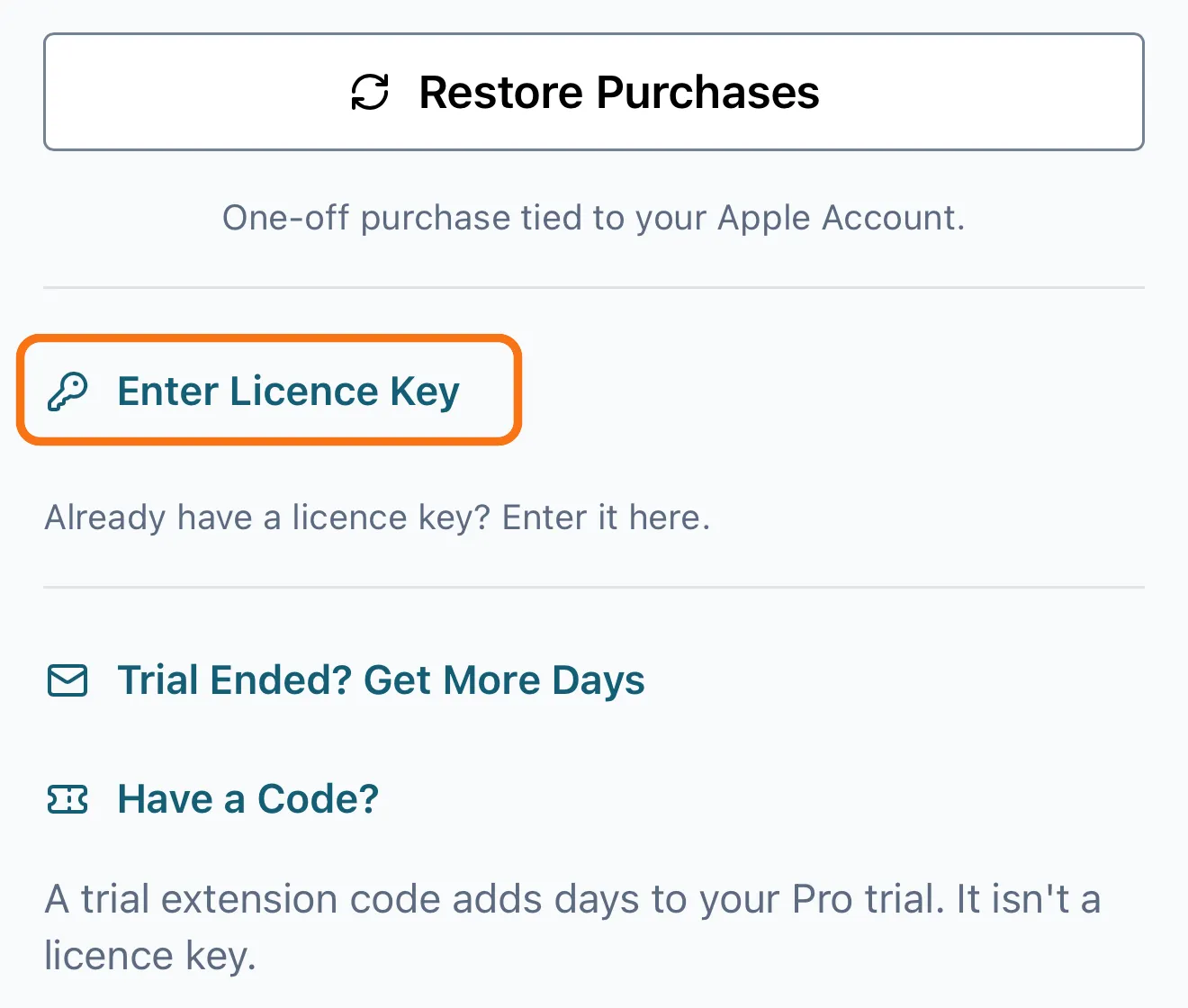
Below the store purchase and Restore Purchases, tap Enter Licence Key. It’s a small text button with a key icon, with “Already have a licence key? Enter it here.” under it.
-
Paste the key into the Licence Key box and tap Activate.
Each device you activate uses one of the key’s 5 activations.
Activation needs an internet connection once. After that, Pro works offline.
If you enter a key for a different SquareWave app, you’ll see This licence key is for a different SquareWave app. That doesn’t use up an activation.
Move to Another Device
Section titled “Move to Another Device”To free up an activation:
- On the device you’re leaving, open Settings > Licence > Manage Licence.
- Select the red deactivate button on this device’s row, then confirm with Deactivate This Device.
- Activate on the new device with the same key.
If you’ve already used all 5 and can’t reach an old device, the app shows Activation Limit Reached. Select Open Customer Portal, deactivate a device there, then try again.
Lost Your Key?
Section titled “Lost Your Key?”Search your email for the purchase receipt, or email me at support@squarewave.studio from the address you bought with, and I’ll send it again.