How to Bring Microtonic Presets to Your PO-32
The PO-32 Tonic’s drum engine comes from Sonic Charge’s Microtonic, so Microtonic patches carry across. If you’ve spent years building drums in Microtonic, you don’t have to rebuild them by hand on the PO-32’s two knobs. PO-PatchStudio reads your patch files, lets you check them in the Studio and sends them to the device.
These are your own files. PO-PatchStudio doesn’t include or share any Sonic Charge content, and it reads all three generations of the Microtonic patch format, so older patches load too.
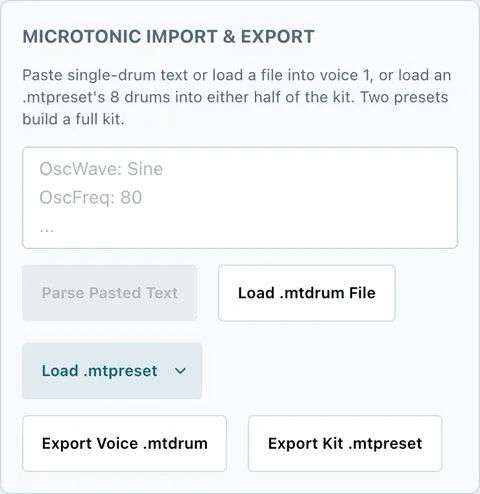
Everything here happens in Transfer & Import, in the Microtonic import & export panel.
One drum (.mtdrum)
Section titled “One drum (.mtdrum)”A .mtdrum file is a single drum, and it goes into one side of one voice.
- In the Studio, pick the voice you want to replace.
- Set the Morph slider to the side you want to fill: left for A, right for B.
- In Transfer & Import, select Load .mtdrum File and pick the file. If you’ve got the patch as text instead, paste it into the box and select Parse Pasted Text.
The drum lands on that side of the voice, and the voice takes the patch’s name if it has one. The panel names the voice it’s loading into, so check it before you load.
A whole preset (.mtpreset)
Section titled “A whole preset (.mtpreset)”A Microtonic preset holds 8 drums and the PO-32 has 16 voices, so two presets make a full kit.
- Select Load .mtpreset.
- Choose Into voices 1–8 or Into voices 9–16, then pick the file.
- Repeat with a second preset for the other half.
Each drum fills both the A and B side of its voice, so the morph does nothing until you change one side. The status line says how many drums loaded and whether any couldn’t be read.
Check it in the Studio
Section titled “Check it in the Studio”Microtonic and the PO-32 share an engine, but the app plays sounds with the open-source libpo32 synth, so what you hear in PO-PatchStudio is close to the PO-32 rather than identical. Play through the voices in the Studio, adjust anything that needs it and give each half of a voice its own character if you want the morph to move.
When it sounds right, save it with Save to Library and Kit (all 16 sounds), so you can send it again later without loading the presets.
Send it to the PO-32
Section titled “Send it to the PO-32”Open Send to PO-32 on the same page, choose Kit, put the PO-32 in receive mode with acc + sound and select Play Transfer. The full walk-through, with the setup that gets a clean transfer, is in How to Send a Drum Kit to Your PO-32.
Going the other way
Section titled “Going the other way”You can take PO-32 sounds back to Microtonic too:
- Export Voice .mtdrum saves the picked voice as a single drum.
- Export Kit .mtpreset saves all 16 voices in one preset file.
A few limits come from the format. A Microtonic drum has no morph pair, so only each voice’s A side is saved. Microtonic itself loads 8 channels, so it uses the first 8 voices of a kit file; all 16 come back if you load the file into PO-PatchStudio again. Patterns aren’t included. On desktop, exports go to your Downloads folder.
For the full reference, see Microtonic Import and Export.
Get started
Section titled “Get started”PO-PatchStudio is free to download, with no licence or trial: get it for your computer or phone.
PO-PatchStudio is an independent app from SquareWave Studio. It is not affiliated with or endorsed by Teenage Engineering AB or Sonic Charge.