How to Send a Drum Kit to Your PO-32
The PO-32 Tonic has no USB data connection. New sounds reach it as audio: it listens through its microphone and decodes what it hears, a bit like an old modem. That sounds fragile, and the first time a transfer fails it can feel that way. Get a few habits in place and it’s far less fussy than it seems, and you can load all 16 sounds you’ve built in PO-PatchStudio in one go.
Before you start
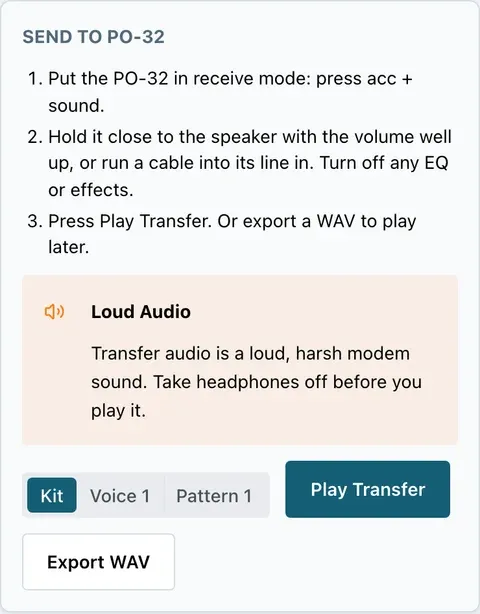
Section titled “Before you start”Set things up so the PO-32 hears the transfer and nothing else:
- Turn your computer or phone up until it’s just below the point where it distorts.
- Turn off EQ, effects and audio “enhancements” on the output, including spatial audio on phones and headphones.
- Take headphones off. The transfer is a loud, harsh modem sound, and the app warns you about it.
- Keep the room quiet while it plays. Background noise can spoil a transfer.
You don’t need to stop a pattern playing in the Studio first. Play Transfer stops it, and any preview, so they don’t mix into the burst. It can’t silence other apps, though, so pause any music playing on the same computer or phone.
If you’d rather not rely on the microphone, the PO-32 also takes the transfer through its line input. Run a 3.5 mm cable from your computer’s or phone’s audio output to the PO-32’s line in.
Send the kit
Section titled “Send the kit”- In PO-PatchStudio, open Transfer & Import.
- Under Send to PO-32, choose Kit. That’s all 16 sounds, both their A and B sides, and they replace sounds 1 to 16 on the PO-32.
- On the PO-32, press acc + sound to put it in receive mode.
- Hold the PO-32’s microphone close to your speaker, or plug in the cable.
- Select Play Transfer and let it finish.
A kit transfer takes tens of seconds, so leave it to play out. If you need to stop it partway, the same button reads Stop Transfer while it plays.
The same transfer also sends drum sounds to the PO-35 Speak’s built-in Tonic channel.
Send one voice or a pattern instead
Section titled “Send one voice or a pattern instead”Voice sends just the voice you’ve picked in the Studio, to the same sound number on the PO-32: voice 5 replaces sound 5. It’s quicker than a whole kit when you’ve only changed one sound.
Pattern sends the current pattern into the same pattern number on the PO-32, along with the tempo and swing. A pattern with no steps can’t be sent, so write something first.
Send from the Library
Section titled “Send from the Library”Once you’ve saved a kit with Save to Library in the Studio, you can send it again any time without rebuilding it. In the Library, open the item’s menu and choose Send to PO-32…. Transfer opens with that item ready, so you put the PO-32 in receive mode and select Play Transfer as before. A saved voice reads Send to Sound and a number instead: it goes to the sound picked in the Studio.
Export a WAV to play later
Section titled “Export a WAV to play later”Export WAV saves the transfer as an audio file instead of playing it. On desktop it goes to your Downloads folder. On a phone you choose where to save it. Play the WAV into the PO-32 later from any device, in receive mode as usual. It’s handy when the computer you made the kit on isn’t the one next to the PO-32.
If the PO-32 didn’t get it
Section titled “If the PO-32 didn’t get it”Check these three things first:
- The PO-32 was in receive mode (acc + sound) before you selected Play Transfer.
- The volume is up to just below distortion, with the PO-32 right next to the speaker.
- EQ, effects and spatial audio are off. Then try again somewhere quieter, or use the cable into the line in, which avoids the room altogether.
If a long kit transfer fails near the end, check you’re on version 1.0.2 or later: earlier versions let the end of a long transfer drop in level. More fixes are in Troubleshooting Transfers, and the full reference is in Sending to the PO-32.
Get started
Section titled “Get started”PO-PatchStudio is free to download, with no licence or trial: get it for your computer or phone.
PO-PatchStudio is an independent app from SquareWave Studio. It is not affiliated with or endorsed by Teenage Engineering AB.