Sample Editor
The Sample Editor turns your own recordings into multisample presets, starting with the OP-XY. It’s free, and it stays free.
It has two layouts. Melodic maps samples across keyboard zones for playable instruments. Drum Kit puts one sample on each of 12 pads. For a full 24-slot drum kit, use the Drum Tool.
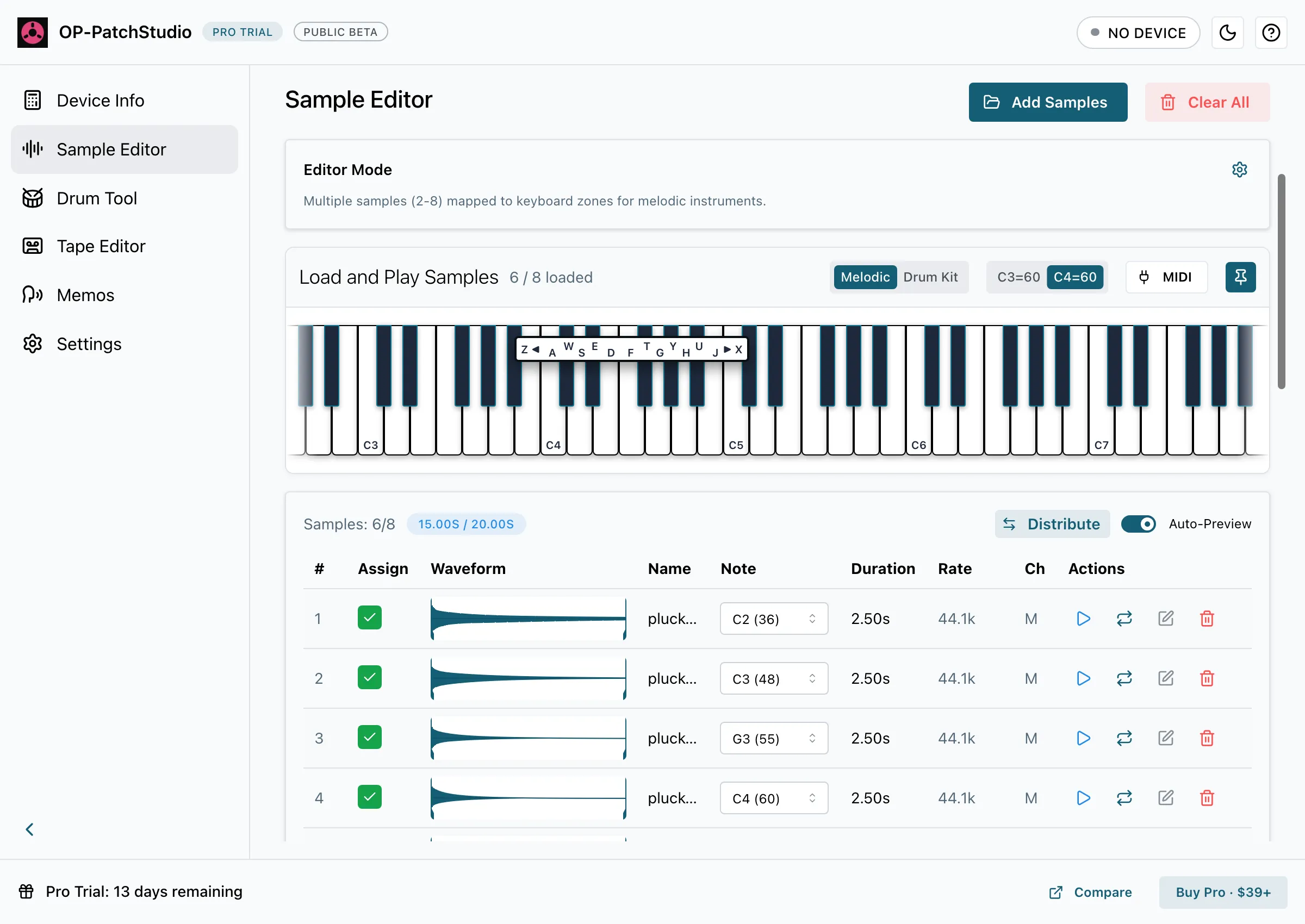
Add Samples
Section titled “Add Samples”- Open Sample Editor.
- Select Add Samples and pick your files, or drag them onto the sample list. WAV, AIFF and MP3 all work.
- Choose Melodic or Drum Kit above the keyboard.
You can also drop a file straight onto a key to set its root note, or onto a pad in Drum Kit.
The Sample Editor assigns up to 8 samples to a preset, with 20 seconds of audio in total. Switch on 2x Speed (40s max) to fit up to 40 seconds: the app speeds the audio up, and you pitch the preset down an octave on the OP-XY to play it back at normal speed.
Map Samples Across the Keyboard
Section titled “Map Samples Across the Keyboard”Each sample gets a root note. OP-PatchStudio reads it from the file’s own note data if it has one,
then from a note in the file name (such as Pad C3.wav). If neither is there, set the note in the
Note column, or use the pitch detection in the sample’s edit window.
- Distribute spreads root notes evenly, chromatically or along a scale.
- The C3=60 and C4=60 buttons choose how middle C is named.
- Play the keyboard with your mouse, a MIDI keyboard (MIDI) or your computer keys: A to J for white notes, W, E, T, Y and U for black notes. Z and X change octave.
- With Auto-Preview on, each sample plays when you select it.
Tick Assign on the samples you want in the preset.
If the total goes over the limit, the app shows Duration limit exceeded. Trim the sample end points, remove a sample, switch on 2x Speed or, in Melodic layout, use Trim to fit.
Sound and Output Settings
Section titled “Sound and Output Settings”Sound Parameters shape how the whole preset plays, and they’re saved in the preset:
- Amplitude.
- Attack and Release, the envelope for every note.
- Pitch Offset, up to 36 semitones up or down (Melodic layout).
Output Settings set how the preset plays and the files it’s saved with:
- Play Mode: Poly or Legato.
- Sample Name: the name the preset uses.
- Sample Rate: 44.1 kHz by default. Lower rates make smaller files.
- Bit Depth: 16-bit by default. The 8, 10 and 12-bit options bake in a lo-fi sound and save a 16-bit file. 24-bit (Hi-Fi) saves a 24-bit file.
- Channels: mono by default, or stereo.
- Normalise: brings every sample up to the same peak Level (from -12 to 0 dB).
Save the Preset
Section titled “Save the Preset”- Select Save Preset.
- Choose where to save it. The app writes a ZIP with the preset file (
patch.json) and one WAV per sample. - Copy it to your OP-XY: Copying to Your Device has the steps.
Keyboard shortcuts: Cmd+O (or Ctrl+O) adds samples, and Cmd+S (or Ctrl+S) saves.