Drum Tool
The Drum Tool builds a drum preset with up to 24 samples, one for each drum slot, starting with the OP-XY. It’s free. In the app it’s called the Drum Preset Creator.
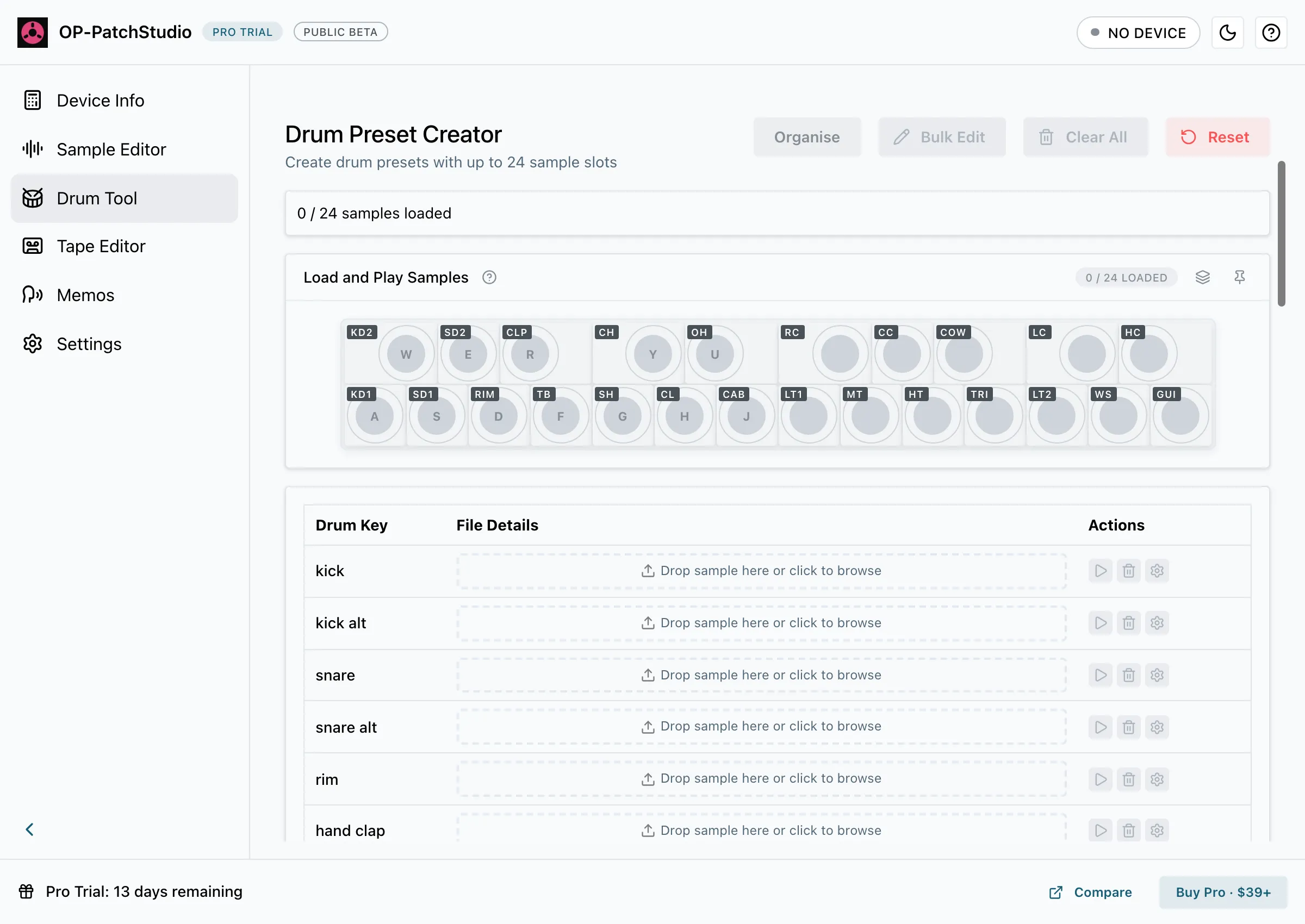
Load Samples
Section titled “Load Samples”- Open Drum Tool.
- Click an empty key on the keyboard to pick a file, or drag audio files onto a key or onto a row in the list. WAV, AIFF, MP3 and M4A all work.
- Play the kit with your mouse or your computer keys (A to J, W, E, R, Y and U, with Z and X to change octave).
The slots follow the OP-XY drum layout: kick, kick alt, snare, snare alt, rim, hand clap and so on, up to guiro in slot 24. Each row has Play, Clear and Sample settings buttons.
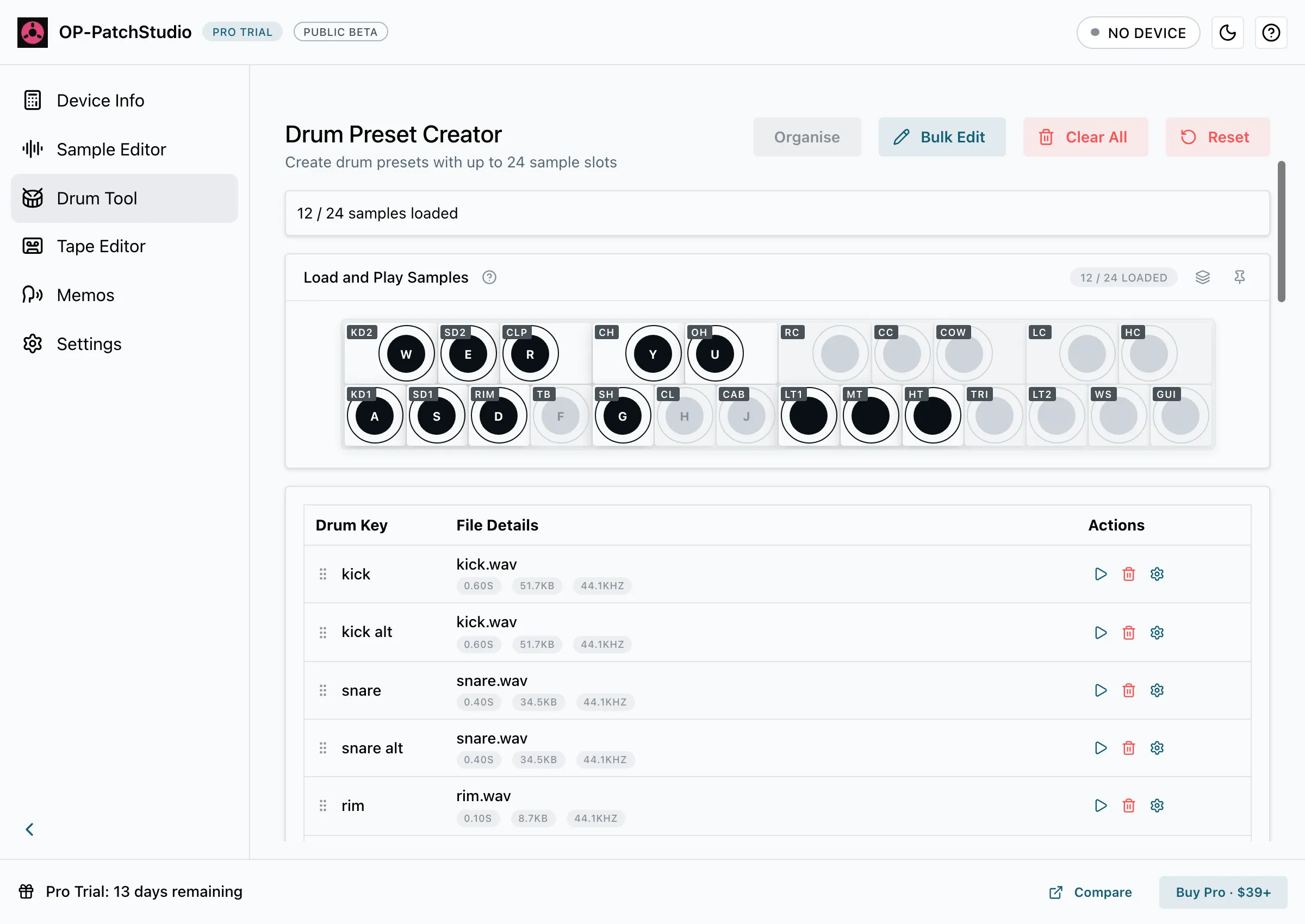
Set Each Slot
Section titled “Set Each Slot”Select Sample settings on a row to open that slot’s settings.
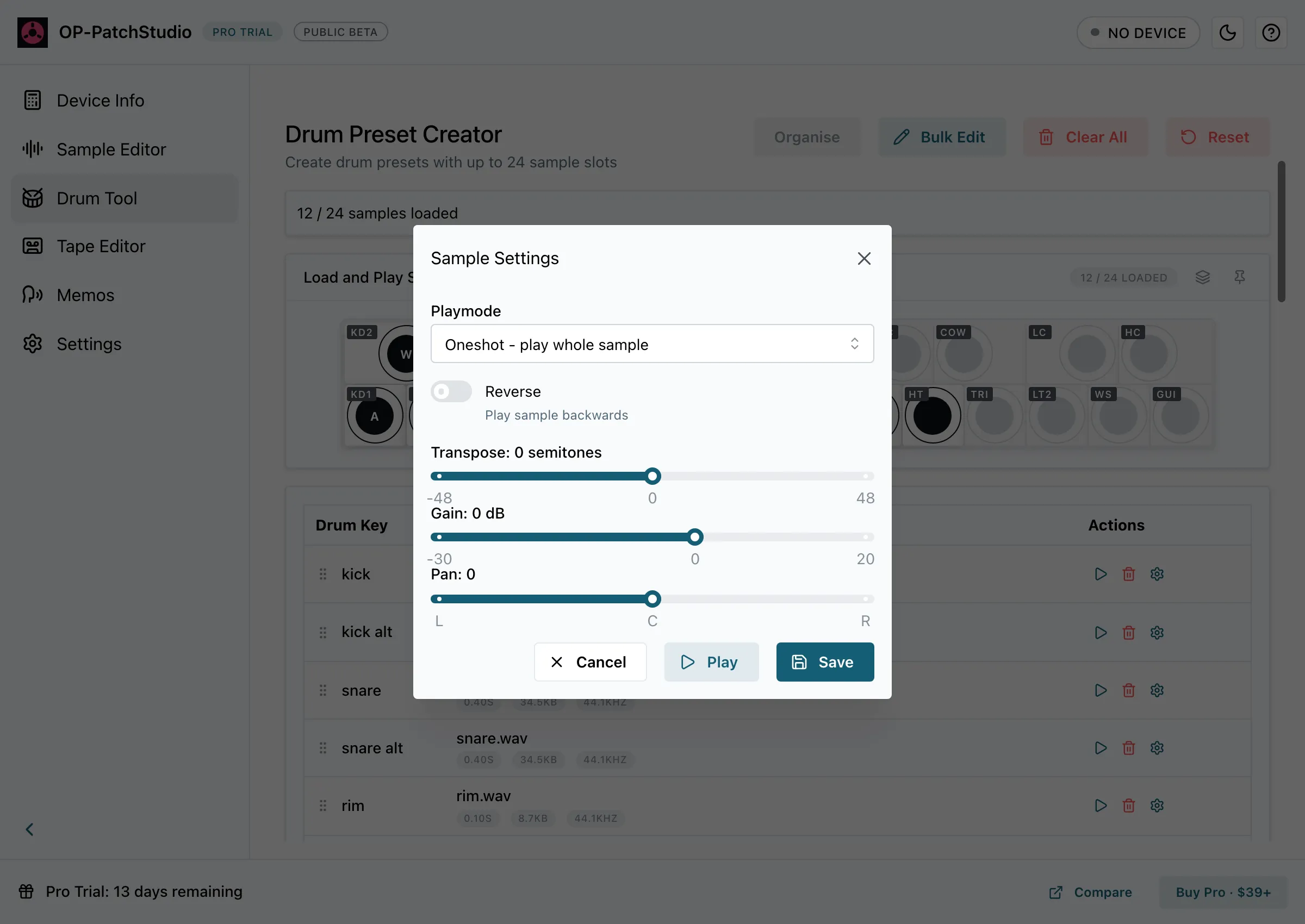
- Playmode: Oneshot (play the whole sample), Mute group (stops when another sample in the group plays), Loop or Key (plays while held).
- Reverse: plays the sample backwards.
- Transpose: up or down by up to 48 semitones.
- Gain: from -30 to +20 dB.
- Pan: from left to right.
To change several slots at once, use Bulk Edit (it needs at least two samples loaded). Organise groups the list by keyboard row. Clear All empties the kit and Reset puts everything back to its defaults.
Preset Settings and Audio Processing
Section titled “Preset Settings and Audio Processing”Preset Settings apply to the whole kit: Playmode (Poly, Mono or Legato), Transpose, Velocity, Volume and Width.
Audio Processing sets the output format. Leave Sample Rate, Bit Depth and Channels on Original to keep your files as they are, or convert them. Normalise brings every sample up to the same peak level.
Save the Preset
Section titled “Save the Preset”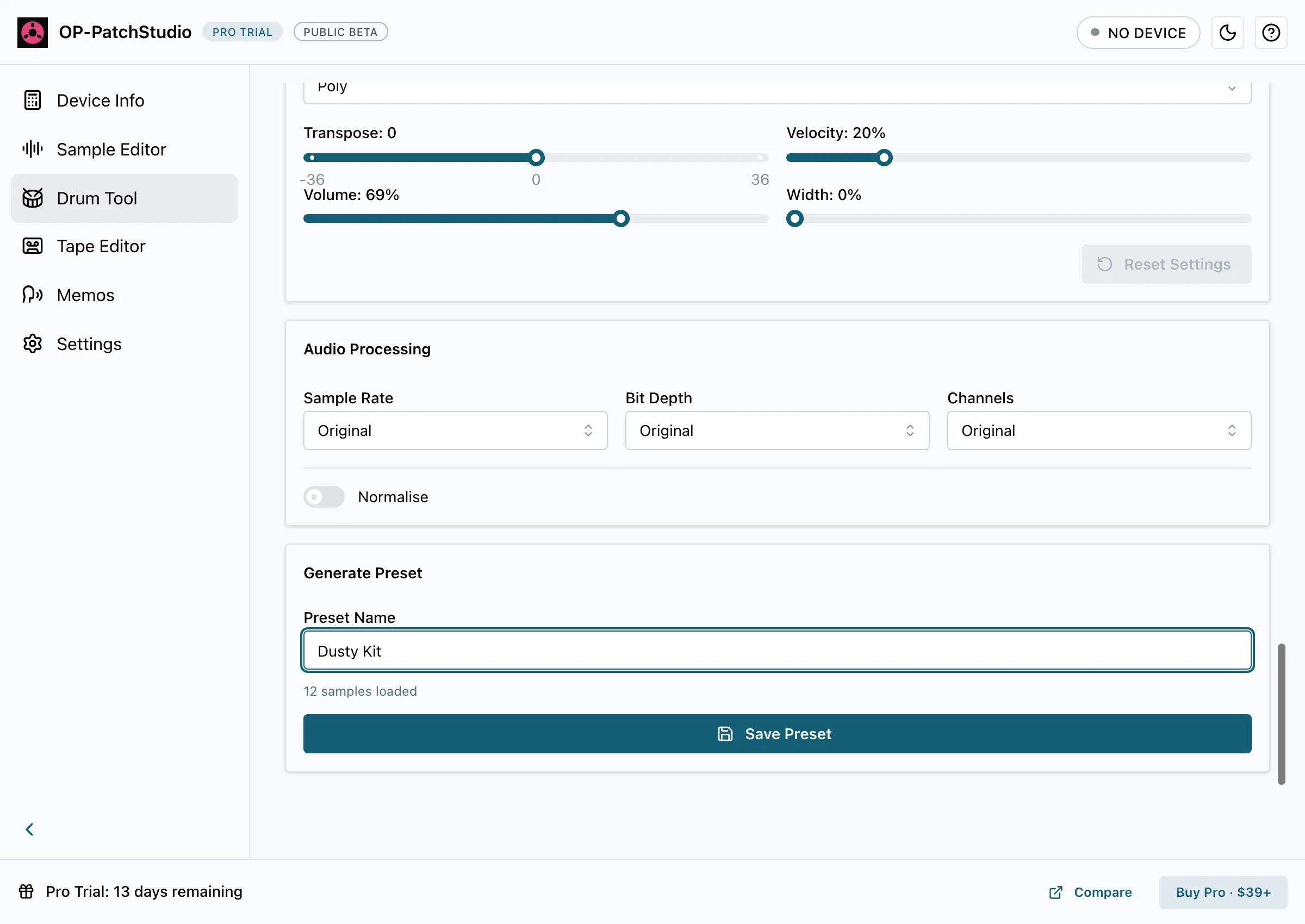
- Type a Preset Name.
- Select Save Preset and choose where to save it. The app writes a ZIP with the preset file
(
patch.json) and one WAV per slot. - Copy it to your OP-XY: Copying to Your Device has the steps.